IPTV Smarters Pro is one of the most popular IPTV players in 2026, and this guide covers exactly how to install IPTV Smarters Pro on Amazon Firestick, Fire TV, Google/Android TV, Apple TV, iPhone, iPad, Windows PC, and Android phones. This guide also explains what IPTV Smarters Pro actually does, how to set up an M3U URL or Xtream Codes API, and how to activate the recording, EPG, multi-screen, and external player features.
IPTV Smarters Pro was removed from the Google Play Store in 2019 and does not appear in the Amazon App Store, which means Firestick, Fire TV, and Android TV users must sideload the IPTV Smarters Pro APK through the Downloader app. Apple TV, iPhone, and iPad users install the app under the name Smarters Player Lite directly from the App Store, and Windows PC users download the installer from the official IPTV Smarters website.
IPTV Smarters Pro Quick Facts
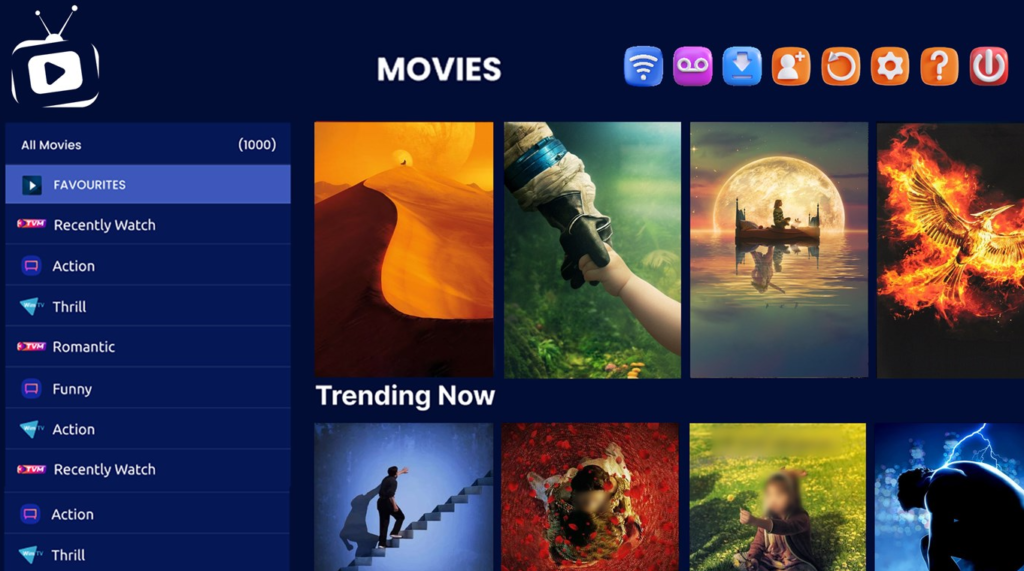
- Latest version: IPTV Smarters Pro 3.1.5 (2026 update)
- Price: 100% free, no subscription required for the player itself
- Supported devices: Amazon Firestick, Fire TV, Fire TV Cube, Android TV, Google TV, NVIDIA SHIELD, Apple TV, iPhone, iPad, Windows PC, Android phones and tablets
- Playlist support: M3U URL, Xtream Codes API, local playlist files
- Downloader Code (TROYPOINT Toolbox): 250931
- App Store name (Apple TV, iOS): Smarters Player Lite
- Google Play Store availability: Removed in 2019 (fake versions exist — avoid)
- Amazon App Store availability: Not available (sideloading required)
- Web player available: Yes, at webtv-new.iptvsmarters.com
- VirusTotal scan status: Clean (zero threats detected)
What Is IPTV Smarters Pro?
IPTV Smarters Pro is a free video player application that reads M3U playlists and Xtream Codes API feeds and displays live TV channels, movies, series, and EPG data in a unified interface. IPTV Smarters Pro does not host or provide any channels. IPTV Smarters Pro simply renders whatever streams the IPTV subscription provider supplies, which means IPTV Smarters Pro is fully legal software regardless of the underlying subscription.
IPTV Smarters Pro stands out from other IPTV players because IPTV Smarters Pro runs on the widest range of platforms in the category. TiviMate, Sparkle TV, and most competing IPTV player apps skip iOS and macOS entirely, but IPTV Smarters Pro ships native versions for Apple TV, iPhone, iPad, Windows, Android, and Fire TV under either the IPTV Smarters Pro name or the Smarters Player Lite name on Apple platforms.
IPTV Smarters Pro Features at a Glance
IPTV Smarters Pro ships every listed feature at zero cost. The main capabilities of IPTV Smarters Pro include:
- 100% free with no premium tier or paywall
- Support for M3U URL, Xtream Codes API, and local playlist files
- Built-in Electronic Program Guide (EPG) with auto-population via Xtream Codes
- Multi-screen viewing (up to 4 channels simultaneously)
- Recording capabilities with custom folder selection
- Multiple playlist management (add multiple IPTV services in one app)
- Parental controls with PIN protection
- External video player integration (MX Player, VLC)
- Web player accessible from any browser
- Hardware decoder toggle for smoother playback
- Auto-start on device boot (toggleable)
- Free Smarters Pro Premium account for network status and support access
- Regular updates from the development team
How to Install IPTV Smarters Pro on Firestick, Fire TV & Android TV
The IPTV Smarters Pro APK does not appear in the Amazon App Store, so Firestick and Fire TV users must sideload the IPTV Smarters Pro APK using the Downloader app. The same process works on Google TV, Android TV boxes, NVIDIA SHIELD, and Onn 4K streaming devices.
Step 1 — Install and Enable Downloader
- From the Fire TV or Android TV home screen, open the search bar and search for Downloader.
- Select the Downloader app and choose Download or Get.
- Wait for the Downloader installation to complete.
- Return to Settings and open My Fire TV (or Device Preferences on Android TV).
- Select About, highlight the device name, and press the select button 7 times until “You are now a developer” appears.
- Return to My Fire TV and open Developer options.
- Select Install unknown apps and toggle Downloader to ON.
Step 2 — Install IPTV Smarters Pro Using Downloader Code 250931
- Launch the Downloader app.
- Click the URL bar on the Home tab.
- Enter Downloader code 250931 and click Go. This code loads the TROYPOINT Toolbox, which hosts the verified IPTV Smarters Pro APK.
- The TROYPOINT Toolbox home screen loads in the Downloader browser.
- Scroll down to IPTV Smarters Pro and click Download.
- Wait for the IPTV Smarters Pro APK download to complete.
- Click Install when the installation prompt appears.
- Click Done once the installation finishes.
- Return to Downloader and click Delete twice to remove the APK file and free up storage.
IPTV Smarters Pro is now installed and available in the Apps list on the Firestick or Android TV device.
How to Set Up IPTV Smarters Pro (M3U URL or Xtream Codes)
IPTV Smarters Pro requires an M3U URL or Xtream Codes API credentials from an IPTV subscription provider before any channels appear. These credentials typically arrive in the welcome email from the IPTV service provider.
- Launch IPTV Smarters Pro on the Firestick, Fire TV, or Android TV device.
- Select the TV layout for streaming devices and click SAVE.
- Read the announcement (which confirms IPTV Smarters Pro does not provide playlists or content) and click Accept.
- Choose Login with Xtream Codes API for the easiest setup, or select Load Your Playlist or File URL for M3U URL setup.
- For Xtream Codes: enter the username, password, and server URL provided by the IPTV service, then click Add User.
- For M3U URL: paste the full M3U URL (which typically already contains the username and password) and click Add User.
- Wait for the “User added successfully” message to appear.
The IPTV service is now integrated into IPTV Smarters Pro, and all channels, VOD, and EPG data will load on the home screen.
How to Install IPTV Smarters on Apple TV
IPTV Smarters is available on Apple TV under the name Smarters Player Lite. The app is free and does not require sideloading, because Apple TV supports the app natively through the App Store.
- Open the App Store on the Apple TV home screen.
- Search for “iptv smarters” or “smarters” and select Smarters Player Lite. Users should verify ratings and reviews to confirm the correct app.
- Click the download icon and wait for the installation to complete.
- Open the app and click Don’t Allow if a tracking prompt appears.
- Choose the login method (M3U URL or Xtream Codes API).
- Enter the IPTV subscription credentials and click Add Playlist.
- Wait for the playlist data to load.
Smarters Player Lite on Apple TV supports the same M3U and Xtream Codes formats as IPTV Smarters Pro on Firestick, so the same subscription credentials work across both devices.
How to Install IPTV Smarters on iPhone and iPad
IPTV Smarters on iOS and iPadOS is also called Smarters Player Lite and installs directly from the Apple App Store at no cost.
- Open the App Store on the iPhone or iPad.
- Search for IPTV Smarters and locate Smarters Player Lite.
- Click Get and confirm the installation.
- Launch the app once the installation completes.
- Enter the M3U URL or Xtream Codes credentials on the login screen.
Smarters Player Lite on iOS delivers the same core IPTV Smarters Player feature set as the Android and Fire TV versions, which makes iPhone and iPad practical companion devices for a household IPTV setup.
How to Install IPTV Smarters Pro on Windows PC
IPTV Smarters Pro ships an official Windows installer through the developer website, which allows PC users to run the same IPTV Smarters Player experience on a desktop or laptop.
- Visit the official IPTV Smarters Pro website and click Downloads at the top of the page.
- Click Download for Windows and wait for the installer to download.
- If the browser shows a “download blocked” warning, click the notification and choose Download unverified file. The IPTV Smarters Pro download is legitimate but unsigned, which triggers the browser warning.
- Open the downloaded installer and wait for the installation to complete.
- Launch IPTV Smarters Pro on Windows.
- Log in with the M3U URL or Xtream Codes API credentials.
IPTV Smarters Pro on PC supports the same multi-playlist, EPG, recording, and multi-screen features as the Fire TV version.
How to Install IPTV Smarters on Android Phones and Tablets
IPTV Smarters Pro is no longer available on the Google Play Store, and the app currently listed under the “IPTV Smarters Pro” name in the Play Store is a fake version with negative reviews and missing features. Android phone and tablet users should install the official IPTV Smarters Pro APK directly from the TROYPOINT Toolbox instead of the Play Store.
- Open a browser on the Android phone or tablet.
- Navigate to the TROYPOINT Toolbox and locate the IPTV Smarters Pro APK.
- Download the APK file.
- Enable Install from Unknown Sources in Android Settings for the browser being used.
- Open the downloaded APK and click Install.
- Launch IPTV Smarters Pro and log in with the M3U URL or Xtream Codes credentials.
Avoiding the Google Play Store fake version protects Android users from a stripped-down app with missing core features.
IPTV Smarters Pro Key Features Explained
Multiple Playlists
IPTV Smarters Pro supports multiple simultaneous playlists, which allows a single IPTV Smarters Pro installation to combine two or more IPTV services in one interface. To add a second playlist, open IPTV Smarters Pro settings and select Add User, then enter the second set of M3U or Xtream Codes credentials. Multiple playlists provide backup access when a primary provider experiences downtime.
Electronic Program Guide (EPG)
IPTV Smarters Pro delivers a functional EPG that auto-populates when the setup uses Xtream Codes API. For M3U URL setups, IPTV Smarters Pro requires a separate EPG source URL:
- Select Install EPG from the main menu.
- Click the EPG source link box.
- Enter the EPG M3U URL provided by the IPTV service.
- Click Add EPG.
The EPG then loads on the home screen and displays the current and upcoming programs across all channels.
Recording on IPTV Smarters Pro
IPTV Smarters Pro supports live channel recording with a user-defined destination folder. Recording on Firestick and Android TV typically requires a USB drive formatted as FAT32, because internal storage on these devices is limited.
Steps to configure recording in IPTV Smarters Pro:
- Open IPTV Smarters Pro and select Recordings from the home screen.
- Choose Change Directory and select Internal Storage (or the connected USB drive).
- Choose New Folder, name it Recordings, and click OK.
- Return to the Channels list.
- Long-press the Select button on the desired channel and choose Start Recording.
- Set the recording duration in minutes.
- Click Start Recording.
Completed recordings appear under the Recordings section on the home screen for playback or deletion.
Multi-Screen Viewing
IPTV Smarters Pro includes a multi-screen mode that displays up to 4 channels simultaneously on one display. Multi-screen supports dual-screen and 4-screen layouts, and users select each channel per grid position. Sports viewers benefit the most from this feature.
Parental Controls
IPTV Smarters Pro parental controls block content behind a PIN. Users enable parental controls in the settings menu and set a numeric password, which then triggers on protected content categories.
External Video Players (MX Player, VLC)
IPTV Smarters Pro allows external video players to handle stream playback, which often reduces buffering on lower-end Firestick models. MX Player works particularly well with IPTV Smarters Pro for VOD content.
To integrate MX Player into IPTV Smarters Pro:
- Install MX Player on the device first.
- In IPTV Smarters Pro settings, click Player Selection, then Add Player.
- Choose MX Player and click Add.
- Choose the Video Player category (Live TV, Movies, or Series) and select MX Player as the assigned player.
- In Player Settings, enable Hardware Decoder and click Save Changes.
For best results, MX Player should handle Movies and TV Series while the built-in player handles Live TV.
Web Player
IPTV Smarters Pro offers a browser-based web player at webtv-new.iptvsmarters.com, which allows access to the IPTV service on any device with a modern browser. The web player supports 1 Stream Panel, Xtream Codes API, and M3U URL integration. The IPTV Smarters web player is especially useful for Android users who prefer to skip APK installation and for travelers who need IPTV access on hotel or borrowed devices.
Smarters Pro Premium (Free Account)
Smarters Pro Premium is a free service that requires only a username and password registration on the official IPTV Smarters Pro website. Smarters Pro Premium does not cost money and does not unlock playback features. Smarters Pro Premium provides:
- Access to a user dashboard
- Network status monitoring
- Customer support contact form
Registration is optional and does not affect IPTV Smarters Pro functionality on Firestick, Android TV, or any other device.
IPTV Smarters Pro Pros and Cons
What Works Well
- IPTV Smarters Pro is completely free with no subscription required for the player.
- IPTV Smarters Pro APK passed VirusTotal scans with zero threats detected.
- IPTV Smarters Pro runs on the widest range of platforms in the IPTV player category.
- IPTV Smarters Pro accepts M3U URLs, Xtream Codes API, and local playlist files.
- The built-in EPG auto-populates with Xtream Codes setups.
- Multi-screen supports up to 4 channels at once.
- Recording, parental controls, and external player support all ship at zero cost.
- The web player provides browser-based access from any device.
Common Complaints
- Removal from the Google Play Store and Amazon App Store requires sideloading.
- Fake versions in the Google Play Store confuse Android users.
- Buffering can occur during peak viewing hours on the built-in player.
- Customer support response times vary.
- EPG may fail to load on M3U URL setups without a separately configured EPG source.
- Initial playlist setup can confuse beginners unfamiliar with M3U or Xtream Codes formats.
Beware of IPTV Smarters Pro Imposters
IPTV Smarters Pro does not sell any IPTV subscription. IPTV Smarters Pro is only a video player. Any website advertising “IPTV Smarters Pro subscriptions” or bundled channel packages is fraudulent, and payment information should never be entered on those sites.
Legitimate IPTV Smarters Pro download sources include:
- The official IPTV Smarters website (iptvsmarters.com) for the Windows installer
- The TROYPOINT Toolbox (Downloader code 250931) for the Firestick and Android TV APK
- The Apple App Store for Smarters Player Lite on Apple TV, iPhone, and iPad
The Google Play Store version listed as “IPTV Smarters Pro” is not the real app and should be avoided.
Final Thoughts on Installing IPTV Smarters Pro
IPTV Smarters Pro remains the most versatile free IPTV player in 2026, and the installation process takes under 10 minutes on any supported device. Firestick and Android TV users install the IPTV Smarters Pro APK through Downloader code 250931, Apple TV and iOS users install Smarters Player Lite from the App Store, and Windows PC users download the official installer from the IPTV Smarters Pro website.
The main advantage of IPTV Smarters Pro over TiviMate, Sparkle TV, and other paid IPTV players is platform reach. IPTV Smarters Pro is the only major IPTV player that runs natively across Fire TV, Android TV, Apple TV, iOS, Windows, and Android phones, which makes IPTV Smarters Pro the practical choice for households with mixed device ecosystems. Users who prefer a single subscription experience across all family devices consistently return to IPTV Smarters Pro because the same M3U URL or Xtream Codes credentials work identically on every platform.