Watching IPTV on Roku works differently than on Firestick, Fire TV, or Android TV, and this guide covers every legitimate method to stream IPTV on Roku devices in 2026. This guide compares the best IPTV players for Roku available in the Roku Channel Store, explains the developer-mode workaround for installing IPTV Smarters on Roku, and covers the screen mirroring approach that lets users watch TiviMate or other advanced IPTV players on a Roku display.
Roku runs a closed-source operating system, which means users cannot sideload third-party APKs the way Firestick and Android TV users can. This restriction blocks TiviMate, XCIPTV, and most popular IPTV players from installing directly on Roku. However, Roku IPTV player options do exist inside the official Roku Channel Store, and the developer-mode workaround unlocks IPTV Smarters Roku installation for advanced users.
Watching IPTV on Roku — Quick Facts
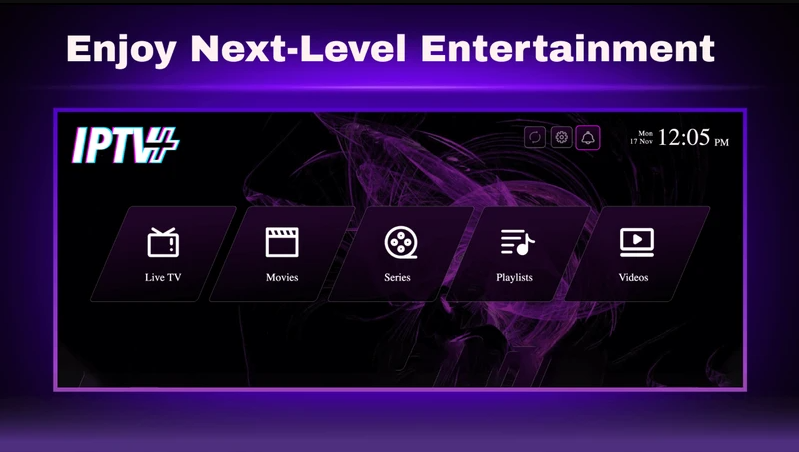
- Sideloading APKs on Roku: Not supported (closed-source OS)
- IPTV player apps in Roku Channel Store: IPTV Pro, OTTplayer, IPTVPlayer, IPTV Plus, TiviPlayer, IPTV Next
- Roku Channel Store IPTV player price: $11.99 USD lifetime for 1 device (all major options)
- Free trial: 7 days on all Channel Store IPTV apps
- IPTV Smarters on Roku: Available via developer-mode sideload (advanced setup, older Roku models only)
- Screen mirroring alternative: Cast TiviMate, IPTV Smarters, or any Android IPTV player to Roku
- Requirement: Active IPTV subscription with M3U URL or Xtream Codes API
- VPN on Roku: Not directly installable; use VPN on router instead
- Recommended alternative if flexibility is a priority: Amazon Firestick or Android TV box
Why Watching IPTV on Roku Is Different
Roku uses a closed-source operating system, which restricts app installations to the official Roku Channel Store. Firestick, Fire TV, Android TV, and Google TV all allow sideloading, which lets users install TiviMate, IPTV Smarters Pro, XCIPTV, and other free or premium IPTV players from outside sources. Roku blocks this entirely, so IPTV on Roku TV depends on either the paid Roku IPTV players listed in the Channel Store or an unofficial developer-mode workaround.
This limitation is why most IPTV enthusiasts recommend Firestick or an Android TV box over Roku for IPTV use. However, Roku owners who prefer the Roku interface or already own multiple Roku devices still have several practical options to watch IPTV for Roku without switching devices.
Best IPTV Players for Roku (Channel Store Apps)
The Roku Channel Store hosts six primary IPTV player apps for Roku. All six apps appear to share the same underlying platform, all six cost $11.99 USD for a lifetime license on one device, and all six offer a 7-day free trial before purchase. Choosing between them comes down to interface preference rather than feature differences.
1. IPTV Pro
IPTV Pro is the most popular IPTV player for Roku in the Channel Store and typically the first result when searching “IPTV” on a Roku device. IPTV Pro has the highest review count among Roku IPTV apps and serves as the default recommendation for most first-time Roku IPTV users.
- Price: $11.99 lifetime for 1 device
- Free trial: 7 days
- Playlist support: M3U URL, Xtream Codes API
- Official website: iptvproplayer.live
- Best for: First-time Roku IPTV users who want the most-reviewed option
2. OTTplayer
OTTplayer is a cross-platform IPTV player that runs on Roku, Samsung Smart TVs, LG Smart TVs, and Android devices through the Google Play Store. OTTplayer appeals to households running IPTV across multiple TV brands because the same playlist configuration works on every supported platform.
- Price: $11.99 lifetime for 1 device (Roku)
- Free trial: 7 days
- Playlist support: M3U URL, Xtream Codes API
- Supported platforms beyond Roku: Samsung Smart TVs, LG Smart TVs, Android
- Official website: simpletv.live
- Best for: Households running IPTV on mixed Smart TV brands + Roku
3. IPTVPlayer
IPTVPlayer markets itself as a multi-language Roku IPTV player with configurable interface language options. IPTVPlayer appeals to non-English speakers and international viewers who need a localized experience.
- Price: $11.99 lifetime for 1 device
- Free trial: 7 days
- Playlist support: M3U URL, Xtream Codes API
- Multi-language interface: Yes
- Official website: i-player.live/en
- Best for: Non-English speakers and international Roku users
4. IPTV Plus
IPTV Plus focuses on playlist management, and IPTV Plus lets users create and manage multiple playlists from either M3U URLs or Xtream Codes credentials. IPTV Plus also supports custom category setup for easier browsing across large channel lists.
- Price: $11.99 lifetime for 1 device
- Free trial: 7 days
- Playlist support: M3U URL, Xtream Codes API
- Multi-playlist support: Yes
- Custom categories: Yes
- Official website: iptvpluseplayer.live
- Best for: Users managing multiple IPTV subscriptions on one Roku
5. TiviPlayer
TiviPlayer includes a built-in EPG and supports login via MAC address or Device Key in addition to standard M3U and Xtream Codes options. TiviPlayer works well for IPTV services that authenticate through MAC address rather than standard URL playlists.
- Price: $11.99 lifetime for 1 device
- Free trial: 7 days
- Playlist support: M3U URL, Xtream Codes API, MAC address, Device Key
- Built-in EPG: Yes
- Official website: tiviplayer.io/en
- Best for: IPTV services requiring MAC address authentication
6. IPTV Next
IPTV Next shares the same core capabilities as the other five apps and offers account-based playlist uploads through the developer website. IPTV Next provides a customer support contact form on the official website for troubleshooting.
- Price: $11.99 lifetime for 1 device
- Free trial: 7 days
- Playlist support: M3U URL, Xtream Codes API
- Web-based playlist upload: Yes
- Customer support form: Yes
- Official website: iptvnext.live/en
- Best for: Users who want web-based playlist management
How to Install an IPTV Player on Roku from the Channel Store
Installing any of the six Roku IPTV players above follows the same process, because all six apps live in the official Roku Channel Store.
- Turn on the Roku device and press the Home button on the Roku remote.
- Navigate to Streaming Channels in the Roku home menu.
- Select Search Channels.
- Type IPTV or the specific app name (for example, IPTV Pro or TiviPlayer).
- Select the desired IPTV player for Roku from the results.
- Click Add Channel.
- Wait for the installation to complete.
- Launch the app from the Roku home screen.
- Enter the M3U URL or Xtream Codes API credentials from the IPTV subscription.
- Start the 7-day free trial or complete the $11.99 lifetime purchase through the Roku billing account.
The IPTV service channels, EPG, and VOD content (if provided by the subscription) then load inside the Roku IPTV player.
How to Install IPTV Smarters on Roku (Developer Mode Workaround)
IPTV Smarters Roku installation is possible through the Roku developer-mode sideload method. This method is more complex than installing Channel Store apps and only works on older Roku models with functioning developer mode. Newer Roku devices, including recent Roku Ultra and Roku Streaming Stick 4K models, may block this method entirely, so users should attempt this workaround with realistic expectations.
Step 1 — Enable Developer Mode on Roku
- On the Roku remote, press the following buttons in sequence:
- Home button 3 times
- Up button 2 times
- Right button 1 time
- Left button 1 time
- Right button 1 time
- Left button 1 time
- Right button 1 time
- The Developer Options screen appears.
- IMPORTANT: Note the URL displayed on this screen (typically in the format
http://192.168.1.XX). This URL is required later. - Click Enable installer and restart.
- Scroll down and click I Agree on the Developer Tools License Agreement.
- Enter a PIN of choice and click Set password and reboot.
- Wait for the Roku device to restart.
- Re-enter the Developer Options screen (using the same button sequence) to confirm developer mode is active.
Step 2 — Add the Roku Smarters Player Channel
- Open a browser on a computer and navigate to my.roku.com.
- Sign in with the Roku account credentials.
- Choose Add channel with a code.
- Type iptvsmarters and click Add channel.
- Click OK.
- Click Yes, add channel to confirm.
The Roku Smarters Player channel is now linked to the Roku account.
Step 3 — Sideload the IPTV Smarters Package to Roku
- On the computer browser, navigate to troypoint.com/rokuiptv to download the IPTV Smarters Roku installer package.
- Wait for the download to complete.
- Open a new browser tab and navigate to the Roku IP URL noted earlier (for example,
http://192.168.1.22). - Sign in with:
- Username:
rokudev - Password: the PIN created during developer mode setup
- Username:
- Click Upload.
- Select the previously downloaded IPTV Smarters file.
- Click Install.
- The “Application Installed” screen confirms successful installation.
Step 4 — Log In to IPTV Smarters on Roku
- Return to the Roku device.
- IPTV Smarters launches automatically after installation.
- Enter the IPTV subscription login credentials (M3U URL or Xtream Codes username, password, and server URL).
- Click Login.
IPTV Smarters on Roku now streams the same channels available on Firestick and Android TV installations of the app.
IMPORTANT: This developer-mode method may not work on newer Roku models. Users who attempt this workaround and encounter compatibility issues should fall back to a Channel Store IPTV player or the screen mirroring alternative below.
Alternative Method: Screen Mirroring TiviMate or Other IPTV Players to Roku
Users who prefer TiviMate, XCIPTV, or another advanced IPTV player that does not exist on Roku can still watch those apps on a Roku display through screen mirroring. Screen mirroring casts the Android device screen (running TiviMate) to the Roku, which then displays the mirrored content on the connected TV.
How to Enable Screen Mirroring on Roku
- On the Roku device, open Settings from the home menu.
- Navigate to System > Screen mirroring.
- Set Screen mirroring mode to Prompt or Always allow.
- Note the Roku device name for identification during casting.
How to Cast TiviMate or IPTV Smarters from Android to Roku
- On the Android phone, tablet, or Android TV device, open Settings.
- Find the Cast or Screen Mirroring option (naming varies by manufacturer).
- Select the Roku device from the list of nearby devices.
- Accept the mirroring prompt on the Roku TV.
- Launch TiviMate, IPTV Smarters Pro, or the preferred IPTV player on the Android device.
- The IPTV player interface and video stream appear on the Roku TV.
Screen mirroring works well for casual viewing but adds latency compared to native playback and requires the source Android device to stay powered on throughout the session.
VPN on Roku for IPTV Streaming
Roku does not support VPN apps directly, because Roku’s closed operating system blocks third-party VPN installations. However, users who want VPN protection while streaming IPTV on Roku can install a VPN at the router level, which encrypts all traffic from every device connected to the home network, including the Roku.
Router-level VPN setup requires:
- A compatible VPN provider (Surfshark, ExpressVPN, NordVPN, etc.)
- A router that supports VPN client configuration (most modern routers do)
- Manual configuration of the VPN credentials in the router admin panel
Once configured, all Roku traffic passes through the encrypted VPN tunnel without any changes on the Roku device itself.
Roku IPTV Players vs Firestick IPTV Players
Roku IPTV players offer a more limited experience than Firestick, Android TV, or Google TV IPTV players, and the comparison below shows why most IPTV enthusiasts choose a non-Roku device for serious IPTV use.
- Roku IPTV player selection: 6 paid apps at $11.99 lifetime each, all functionally similar
- Firestick IPTV player selection: TiviMate (free + $9.99/year premium), IPTV Smarters Pro (free), XCIPTV (free), Sparkle TV, Televizo, Kodi, and many more
- Roku sideloading: Not supported
- Firestick sideloading: Supported through Downloader app
- Roku EPG quality: Basic across all Channel Store apps
- Firestick EPG quality: TiviMate delivers the industry-leading EPG
- Roku DVR/recording: Not supported
- Firestick DVR/recording: Supported in TiviMate Premium and IPTV Smarters Pro
- Roku multi-screen viewing: Not supported
- Firestick multi-screen viewing: Supported in IPTV Smarters Pro and StreamVault
Users who value flexibility, feature depth, and access to free IPTV players typically switch from Roku to Firestick or a Google TV box. Users who prefer the Roku interface and only need basic IPTV playback are well-served by any of the six Channel Store apps.
Frequently Asked Questions About IPTV on Roku
Can I install TiviMate on Roku?
TiviMate is not available on Roku directly, because Roku’s closed operating system blocks APK sideloading. Users who want to watch TiviMate on a Roku display can install TiviMate on an Android phone, tablet, or Android TV device and screen mirror the TiviMate interface to the Roku.
Is IPTV Smarters available on Roku?
IPTV Smarters is not available in the Roku Channel Store, but IPTV Smarters on Roku can be installed through the developer-mode sideload method described above. This method only works on older Roku models with functioning developer mode.
Is Televizo on Roku possible?
Televizo on Roku is not directly supported, because Televizo is not available in the Roku Channel Store and does not have a Roku-compatible version. Users who want Televizo Roku access must install Televizo on an Android device and screen mirror to the Roku TV.
Are Roku IPTV player apps legal?
Roku IPTV players are fully legal software, because these apps only function as video players and do not host any content. Legality depends entirely on the underlying IPTV subscription. Licensed IPTV services create a legal viewing experience, while unlicensed services do not.
What is the best IPTV player for Roku?
The best IPTV player for Roku depends on preference, because all six Channel Store apps (IPTV Pro, OTTplayer, IPTVPlayer, IPTV Plus, TiviPlayer, IPTV Next) offer near-identical functionality at the same $11.99 lifetime price. IPTV Pro is the most popular default choice, OTTplayer works best for households with multiple Smart TV brands, and TiviPlayer handles MAC address authentication.
Do Roku IPTV players include an EPG?
Most Roku IPTV players include a basic EPG that displays current and upcoming programs, but the EPG quality is significantly lower than the EPG offered by TiviMate on Firestick or Android TV. Users who require a polished EPG experience typically switch to a non-Roku streaming device.
Can I watch free IPTV on Roku?
Free IPTV is possible on Roku through the free trial periods on Channel Store apps (7 days each) and through screen mirroring free Android IPTV players such as IPTV Smarters Pro from a phone or tablet. Users who want long-term free IPTV playback on Roku have limited native options.
Final Thoughts on Watching IPTV on Roku
IPTV on Roku works, but the experience is more restricted than on Firestick, Fire TV, or Android TV. The six Channel Store Roku IPTV players (IPTV Pro, OTTplayer, IPTVPlayer, IPTV Plus, TiviPlayer, and IPTV Next) all cost $11.99 lifetime, all include a 7-day free trial, and all deliver basic IPTV playback with M3U URL and Xtream Codes support. The developer-mode workaround for IPTV Smarters on Roku provides a free alternative on older Roku models, and screen mirroring from an Android device brings TiviMate, IPTV Smarters Pro, and other advanced IPTV players to the Roku display through a workaround.
Users who plan to build a long-term IPTV setup with advanced features (EPG, DVR, multi-screen, external player support) typically find that switching to an Amazon Firestick or Android TV box delivers a significantly better experience than Roku. Users who already own multiple Roku devices and prefer to keep the Roku ecosystem are best served by picking one of the Channel Store IPTV apps and pairing it with a router-level VPN for privacy protection while streaming.