Setting up IPTV looks intimidating on the first try, but the process comes down to three steps: pick a device, install an IPTV player app, and paste in the credentials from an IPTV provider. This guide walks through every step for the four most common device categories in 2026 — Amazon Fire TV, Android TV / Google TV, smart TVs, and mobile — and explains the two credential formats (M3U and Xtream Codes) that every IPTV service uses.
The IPTV setup process is the same whether the service is a licensed live TV streamer like YouTube TV (which uses a dedicated app) or a third-party IPTV subscription that delivers channels through an M3U URL. This guide focuses on the second category, since licensed services simply require an app download and a normal signup flow.
What You Need Before Starting IPTV Setup
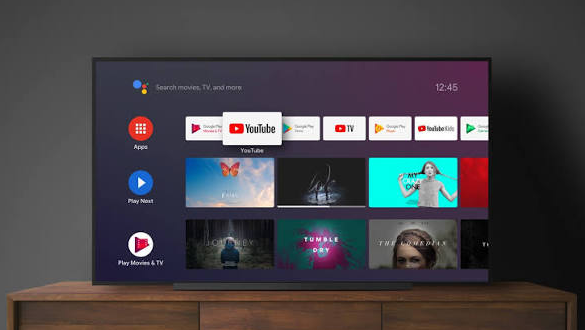
Before opening any app, an IPTV setup requires four things. Missing any one of them stops the process before it starts.
- An IPTV subscription — a paid or trial account with a provider who has emailed login credentials
- Login credentials in one of two formats: an M3U URL (a single long web address) or Xtream Codes (three separate values: server URL, username, and password)
- A streaming device — Fire TV Stick, Android TV box, Google TV device, smart TV, iPhone, Android phone, or a laptop
- A stable internet connection — 15–25 Mbps for HD streams, 40–50 Mbps for 4K streams
The IPTV provider’s welcome email carries the credentials. If the email lists only a single long URL ending in .m3u or .m3u8, the setup will use M3U format. If the email lists a server URL plus a separate username and password, the setup will use Xtream Codes format.
M3U vs Xtream Codes: The Two IPTV Login Formats
Every IPTV setup in 2026 uses one of two credential formats, and knowing which one applies determines which fields to fill in inside the app.
M3U URL is a single web address that points to a playlist file containing every channel on an account. M3U works in every IPTV player ever built and in universal media players like VLC. The username and password are embedded inside the URL as query parameters, so a single string carries the entire login.
Xtream Codes (also called XC API) splits the login into three fields: a server URL, a username, and a password. Xtream Codes delivers cleaner EPG (electronic program guide) integration, faster channel loading, and better handling of on-demand movie and series libraries. Apps like TiviMate, IPTV Smarters Pro, and IPTV Smarters Player prefer Xtream Codes when both formats are available.
Quick facts (M3U vs Xtream Codes)
- M3U compatibility: works in every IPTV app, VLC, Kodi, and browser-based players
- Xtream Codes compatibility: works in TiviMate, IPTV Smarters Pro, XCIPTV, Perfect Player, GSE Smart IPTV, and most modern IPTV apps
- EPG (TV guide) handling: M3U requires a separate XMLTV EPG URL; Xtream Codes loads EPG automatically
- VOD support: M3U shows movies and series inside the channel list; Xtream Codes splits them into dedicated Movies and Series tabs
- Ease of setup: M3U is one paste; Xtream Codes is three fields but auto-loads more features
For beginners, if the IPTV provider offers both formats, using Xtream Codes in TiviMate or IPTV Smarters Pro delivers the closest experience to a traditional cable TV interface.
IPTV Setup on Amazon Fire TV Stick
Amazon Fire TV Stick is the most common IPTV device in 2026 because the hardware is cheap, portable, and supports every major IPTV player through sideloading. The Amazon Appstore does not carry IPTV Smarters Pro or TiviMate, so an IPTV setup on Fire TV requires enabling developer options and installing the Downloader app first.
Quick facts
- Compatible Fire TV devices: Fire TV Stick 3rd Gen, Fire TV Stick 4K, Fire TV Stick 4K Max, Fire TV Cube, Fire TV Lite
- Required apps: Downloader (from Amazon Appstore), plus IPTV Smarters Pro or TiviMate (sideloaded)
- Setup time: roughly 10–15 minutes for a first-time IPTV setup
- Storage needed: 100–200 MB free space
- Sideloading required: yes, because major IPTV players are not on the Amazon Appstore
Step-by-step IPTV setup on Fire TV Stick
- Open the Amazon Appstore, search for Downloader, and install the Downloader app
- Navigate to Settings → My Fire TV → About, highlight the device name, and press the select button seven times to unlock Developer Options
- Return to Settings → My Fire TV → Developer Options and turn on Install unknown apps (older Fire OS versions call this Apps from Unknown Sources)
- Enable the setting for the Downloader app specifically
- Open Downloader, tap the URL bar, and enter the download link for IPTV Smarters Pro (available on the official developer site) or TiviMate
- Wait for the APK to finish downloading, then tap Install
- Open the newly installed IPTV player, accept the terms, and select TV as the device type when prompted
- Choose Add Playlist → Xtream Codes (or M3U URL depending on the credentials) and enter the login details from the IPTV provider’s welcome email
- Wait 15–60 seconds for the channel list, EPG, and VOD library to load
Best for: beginners who want a low-cost, portable IPTV setup that works on any HDMI TV with Wi-Fi.
The Fire TV IPTV setup carries over across every Fire TV model, so a subscriber upgrading from a Fire TV Stick 4K to a Fire TV Cube can complete the same steps without relearning the process.
IPTV Setup on Android TV and Google TV
Android TV and Google TV devices (Chromecast with Google TV, Nvidia Shield, Xiaomi Mi Box, most 2020+ Sony and TCL TVs) run the Google Play Store, which carries most IPTV player apps directly. IPTV setup on these devices skips the sideloading step entirely.
Quick facts
- Compatible devices: Chromecast with Google TV, Nvidia Shield TV, Xiaomi Mi Box, Onn 4K Streaming Box, Sony Bravia Android TVs, TCL Google TVs
- Required apps: IPTV Smarters Pro, TiviMate, or IPTV Smarters Player (from Google Play Store)
- Setup time: roughly 5–8 minutes for a first-time IPTV setup
- Storage needed: 100–150 MB free space
- Sideloading required: no
Step-by-step IPTV setup on Android TV / Google TV
- Open the Google Play Store on the device
- Search for IPTV Smarters Pro or TiviMate and install
- Open the newly installed IPTV player and accept the terms of service
- Choose Add Playlist or Add New User
- Select Xtream Codes or M3U URL based on the format the IPTV provider supplied
- For Xtream Codes: enter server URL, username, and password in separate fields
- For M3U URL: paste the full URL including any token or query string at the end
- Give the playlist a name (any label works)
- Tap Connect or Add and wait for channels to load
Best for: users with a modern smart TV or streaming box who want the fastest IPTV setup with no sideloading.
TiviMate is the most-recommended IPTV player on Android TV for its cable-style channel guide, but the free version limits playlists to one. TiviMate Premium ($19.99/year) removes the limit and unlocks recording. IPTV Smarters Pro remains free for unlimited playlists.
IPTV Setup on Samsung and LG Smart TVs
Samsung Tizen and LG webOS smart TVs cannot sideload standard IPTV player APKs because both operating systems run on non-Android platforms. IPTV setup on these TVs uses Smart IPTV (SIPTV) or a similar Tizen/webOS-native app.
Quick facts
- Compatible TVs: Samsung Tizen TVs (2017+ models), LG webOS TVs (2016+ models)
- Required apps: Smart IPTV, SS IPTV, IPTV Smarters Player (available in Samsung and LG app stores)
- Setup time: roughly 10–15 minutes for a first-time IPTV setup
- Cost: Smart IPTV requires a one-time €5.49 activation fee after a 7-day trial
- Sideloading required: no, but playlist upload happens through a browser, not the TV
Step-by-step IPTV setup on Samsung / LG smart TVs
- Open the TV’s app store (Samsung Apps or LG Content Store) and install Smart IPTV or SS IPTV
- Launch the app on the TV and note the MAC address displayed on the welcome screen
- On a computer or phone, open the app’s official upload site (siptv.eu for Smart IPTV or ss-iptv.com for SS IPTV)
- Enter the TV’s MAC address in the upload form
- Paste the M3U URL from the IPTV provider’s welcome email into the playlist field
- Click Send or Save
- Restart the app on the TV — channels will load automatically from the uploaded playlist
Best for: Samsung and LG smart TV owners who prefer not to buy an external streaming device.
Smart IPTV’s €5.49 activation fee is a one-time payment tied to the TV’s MAC address, so a Samsung TV keeps the activation permanently. The main limitation on smart TV IPTV setup is that most native apps support M3U format only, not Xtream Codes, so EPG typically requires a separate XMLTV URL from the provider.
IPTV Setup on iPhone and Android Phones
Mobile IPTV setup is the simplest of the four categories because both the App Store and Google Play Store carry major IPTV player apps directly. Mobile IPTV works well for testing a new provider’s stream quality before committing to a TV-based setup.
Quick facts
- iOS apps: IPTV Smarters Player, GSE Smart IPTV, iPlayTV ($2.99 one-time), VLC (free)
- Android apps: IPTV Smarters Pro, TiviMate (Android phone version), GSE Smart IPTV, VLC
- Setup time: roughly 3–5 minutes for a first-time mobile IPTV setup
- Storage needed: 50–100 MB free space
- Casting support: most mobile IPTV apps support Chromecast and AirPlay to a TV
Step-by-step IPTV setup on iOS
- Open the App Store and install IPTV Smarters Player or GSE Smart IPTV
- Open the app and tap Add New User or Add Playlist
- Choose Login with Xtream Codes API or Load Your Playlist or File/URL
- Enter the credentials from the IPTV provider’s welcome email
- Tap Add User or Add Playlist and wait for channels to load
Step-by-step IPTV setup on Android
- Open Google Play, install IPTV Smarters Pro or TiviMate
- Follow the same Xtream Codes or M3U URL entry process as Android TV
- Enable Chromecast in the app settings if casting to a TV
Best for: users who want to test an IPTV subscription quickly before a full living-room setup, or who watch IPTV on the go.
Troubleshooting Common IPTV Setup Problems
Most first-time IPTV setup problems fall into five categories, and each has a quick fix that avoids restarting the whole process.
- Channels load but freeze constantly: the internet connection is below 15 Mbps, or the provider’s server is overloaded — test speed with fast.com and contact the provider if speed is adequate
- EPG shows no data: the app is using M3U format without a separate XMLTV EPG URL — request the EPG URL from the provider and add it under app settings
- Login fails with “invalid credentials”: the subscription has expired, or the server URL is missing the port number (e.g.,
http://provider.com:8080rather thanhttp://provider.com) - App crashes on startup on Fire TV: the sideloaded APK version is incompatible with the Fire OS version — download the version specifically marked for Fire TV
- Some channels play, others do not: the provider’s channel list contains dead streams — this is common on grey-market IPTV and usually resolves within 24 hours or requires a channel refresh in app settings
A stable IPTV setup typically stabilizes within the first week as the provider updates channel URLs and the app caches EPG data. Expect to re-enter credentials every 3–6 months if the provider rotates authentication tokens.
The Short Version: IPTV Setup in Under 15 Minutes
The full IPTV setup process for a beginner comes down to a five-step decision tree.
- On Fire TV Stick: sideload IPTV Smarters Pro through the Downloader app, then log in with Xtream Codes
- On Android TV / Google TV: install TiviMate or IPTV Smarters Pro from Google Play, then log in with Xtream Codes
- On Samsung / LG smart TVs: install Smart IPTV, upload the M3U URL through siptv.eu using the TV’s MAC address
- On iPhone / Android phones: install IPTV Smarters Player from the App Store or Google Play, then log in with either format
- On a laptop: open VLC → Media → Open Network Stream → paste the M3U URL
For every device category, the IPTV setup ends the same way: an app on the screen, a channel list on the left, an EPG grid on the right, and a live stream playing in the main window. The specific app changes by platform, but the workflow — install the IPTV player, paste the credentials, wait for the load — stays consistent across the entire IPTV ecosystem in 2026.